 hr
hr
 si
si
 sr
sr
 cs
cs





Give HR More Control with Gecko HRM’s Document Template Builder
Gecko's Document Template Builder helps HR manage recurring documents more independently, with central template and signing settings, guided setup and prefilled defaults.

Maja Sušnik, Marketing Specialist
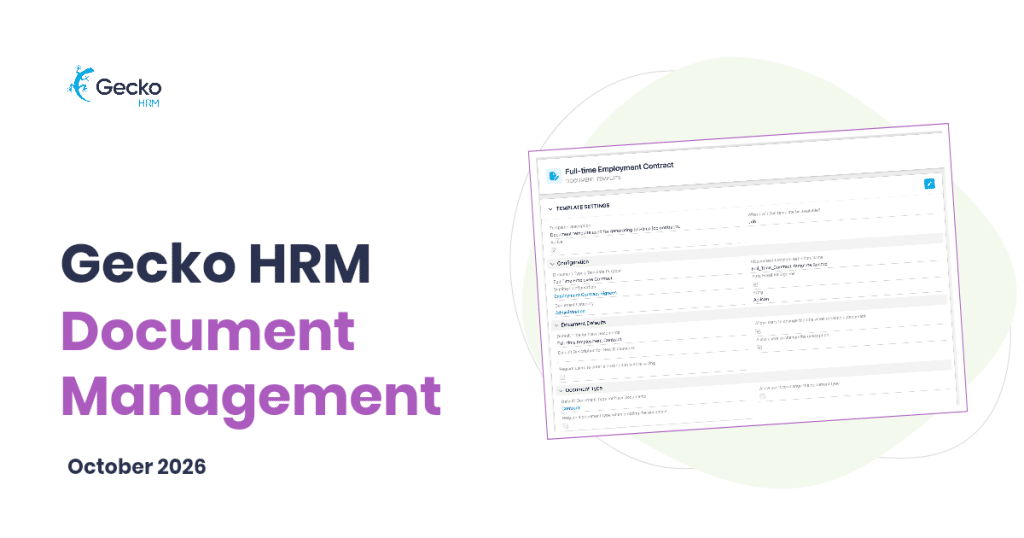
An employment contract can follow a standard structure and still need different details for every employee. A Gecko document template combines reusable wording with data already stored in the system, so HR can generate a personalised document without copying those details into a fresh file each time.
Keeping that template useful takes some care. The wording changes, a default title needs a tidy-up, or the signing arrangements need checking. HR knows what needs to change. Finding and understanding the settings can be the harder part.
Part of Gecko’s 2026 product updates, the new Document Template Builder experience addresses that work. A central Document Management app, guided setup and prefilled defaults help HR teams handle routine configuration more independently, with less need to turn an everyday update into a technical support request.
What Has Changed in Document Management?
The new Document Management app brings templates and signature configurations into one workspace. Document templates have been part of Gecko for some time; this update responds to customer feedback that configuring them could require deep technical knowledge.
For the HR colleague maintaining recurring documents, the benefit is practical: clearer settings and guidance inside the application make it easier to work out what needs changing. Your team can take on more of that routine maintenance directly.
Why Bring Templates and Signing Settings Together?
A document’s content and its signing requirements belong to the same piece of work. When a template changes, it is useful to review the associated signing configuration too.
Our earlier articles cover how Gecko Document Templates generate documents and how Gecko E-Signatures define signers and signing order. The central workspace keeps those connected settings together when you need to check which signing setup belongs to a particular document.
How Does Guided Setup Help?
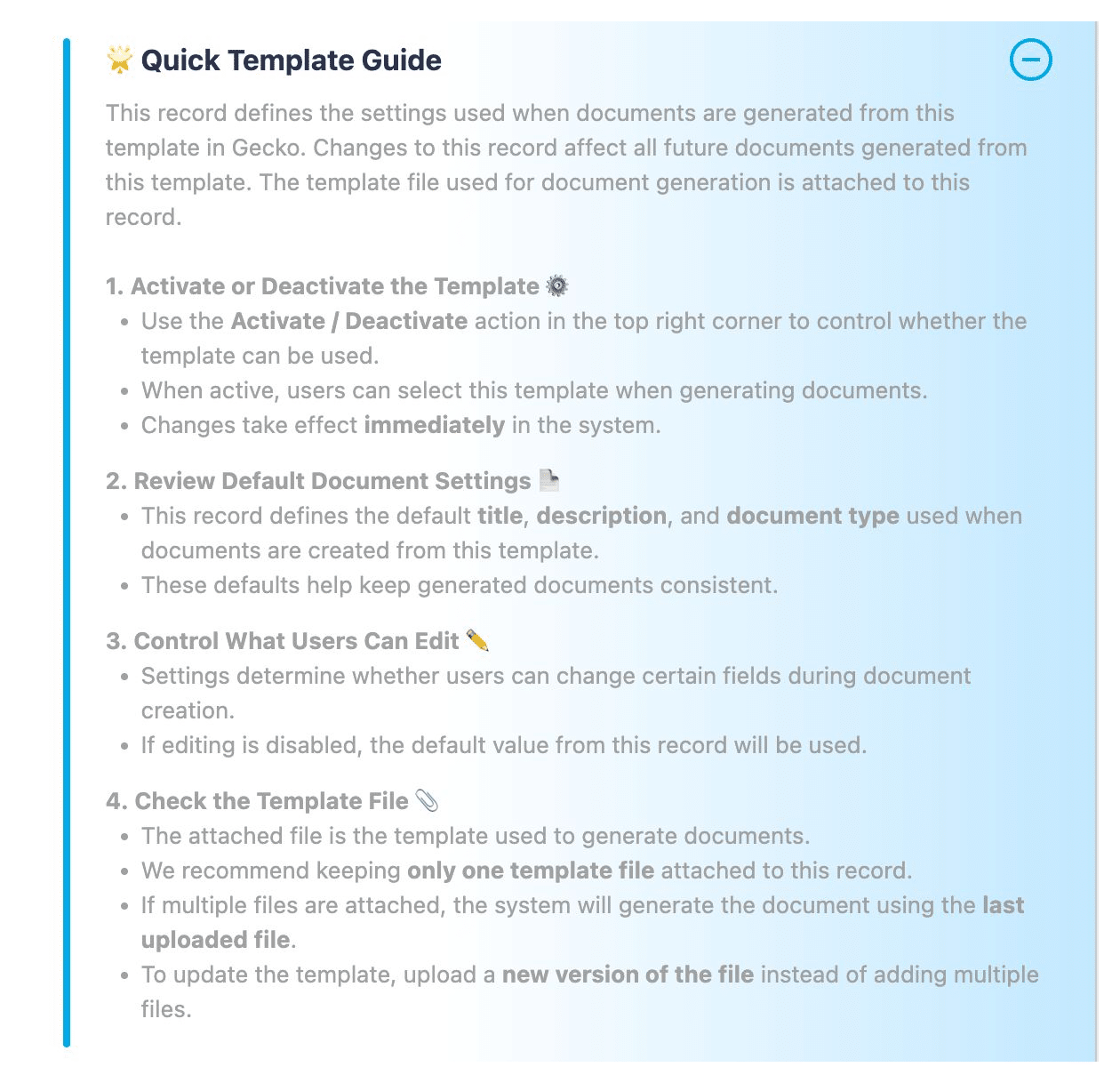
Guided steps and clear options help administrators work through template configuration. Prefilled defaults reduce the amount of manual setup, while the in-app Quick Template Guide explains the settings used when documents are generated.
For example, the guide covers activating a template, reviewing document defaults, controlling what users can edit and checking the attached source file. You can check what a setting does while deciding whether it suits the document you are preparing.
The guide also makes an important point explicit: changes to a template record affect future documents generated from it. It is worth knowing that before you start editing.
Which Settings Can HR Review?
The template settings show the choices behind document creation. An administrator can review:
- Whether the template is active and where it is available
- The default title, description and document type
- Which details users may change when creating a document
- The linked signing configuration and attached template file
These settings deserve a quick check even when defaults are already filled in. A title that suits one document may be confusing on another. A field that should stay fixed for one template may need some flexibility elsewhere. Start with what colleagues need to do when they use the template.
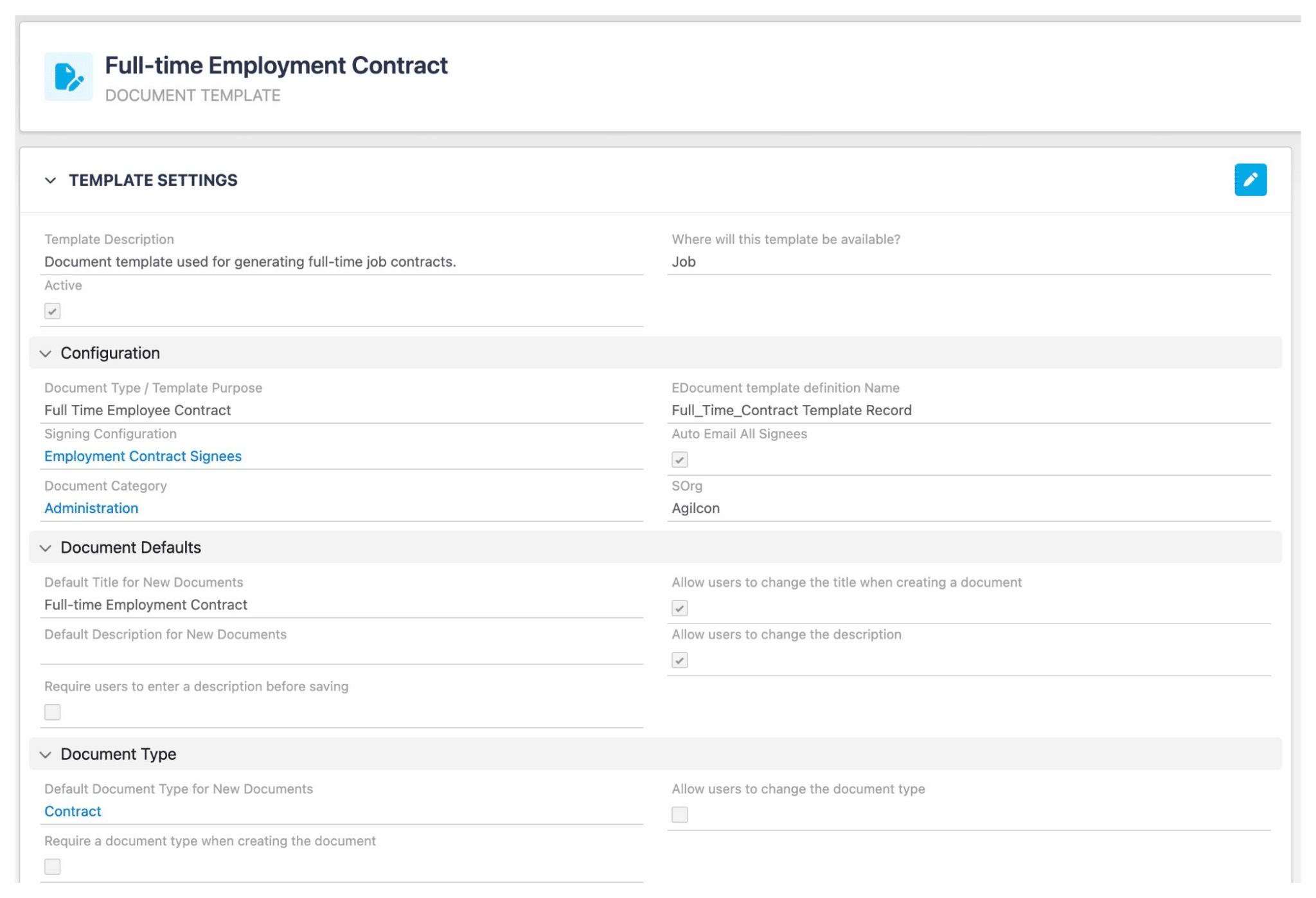
A small template change can affect every new document created from it. Clear settings make that responsibility easier to manage.
What Does a Routine Update Look Like?
Let’s say your team has approved revised wording for a standard employment contract. You update the source file attached to the relevant template, then review its settings: is the default title still right, is the document type appropriate, and does the signing configuration match the intended process?
Keep the attached file easy to identify, too. The Quick Template Guide recommends keeping one template file attached to the record and uploading a new version when it needs updating.
Next, generate a document and check the result before colleagues use the updated template in their daily work. Check the employee details as well as the revised wording, and confirm that the expected title and signing arrangements appear. A reusable template deserves this check before it becomes part of the daily routine.
What Still Needs HR’s Judgement?
Accurate wording, appropriate signing arrangements and reliable employee or job data remain essential. The template’s attached source file still supplies the content used to generate documents, so it needs the same care as the settings around it.
Some requirements still call for specialist help. If a requirement involves unfamiliar data, complex configuration or a change to the organisation’s document process, discuss it with your Gecko consultant before proceeding.
How Can Your Team Get Started?
The new document template manager is built into Gecko, with the updated experience available to customers upon request. Contact Customer Success to discuss enabling it in your environment and any setup needed.
Bring along a recurring document your team maintains and the changes you regularly need to make. For a refresher, Gecko’s Document Management video tutorials cover templates, signees and signatures, and document generation. Use them to prepare the routine tasks you want to handle directly.
Watch our product team explain document template builder here:



You might also like
View all posts