 cs
cs





Bring Structure to HR Document Signing with Gecko E-Signatures

Maja Sušnik, Marketing Specialist
An HR document can be ready in minutes. Getting it signed is the next chapter. Who signs first? Who signs on behalf of the company? And what happens when the usual signer is unavailable?
These decisions may not need a fresh round of emails every time a contract is prepared.
Welcome back to Gecko’s DOCUMENT MANAGEMENT series:
- Document Templates (Read it first)
- E-Signatures (You are here)
In the first instalment, we explored how Gecko Document Templates use existing system data to create consistent HR documents. Now, Gecko E-Signatures bring structure to the signing process, with defined signers, signing order and controlled flexibility.
What Are E-Signatures in Gecko?
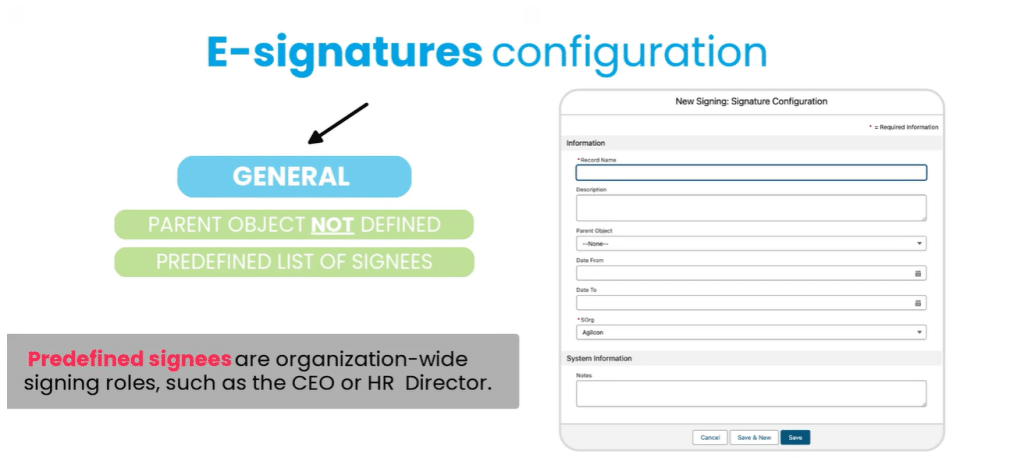
Gecko E-Signatures support document signing through configurations that define who needs to sign and in what order. Connected to document templates, these settings can combine predefined company signers, such as a CEO or HR director, with an employee identified from the record for which the document is created.
Before they can be used in templates, both the signature configuration and the relevant signers need to be set up in Gecko.
How Can HR Define Who Signs a Document?
HR teams can configure signing for general documents or documents linked to a specific record. General configurations use predefined signers. Configurations linked to a record, such as a Job record, can also identify the relevant employee from that record. This allows the signing setup to reflect the document’s purpose.
For example:
- An internal performance bonus award may require only a predefined HR director or CEO.
- A job contract may require the employee linked to the Job record, followed by a company representative.
HR can also define the title or role displayed for each signer in the document, making their capacity clear.
Can HR Control the Signing Order?
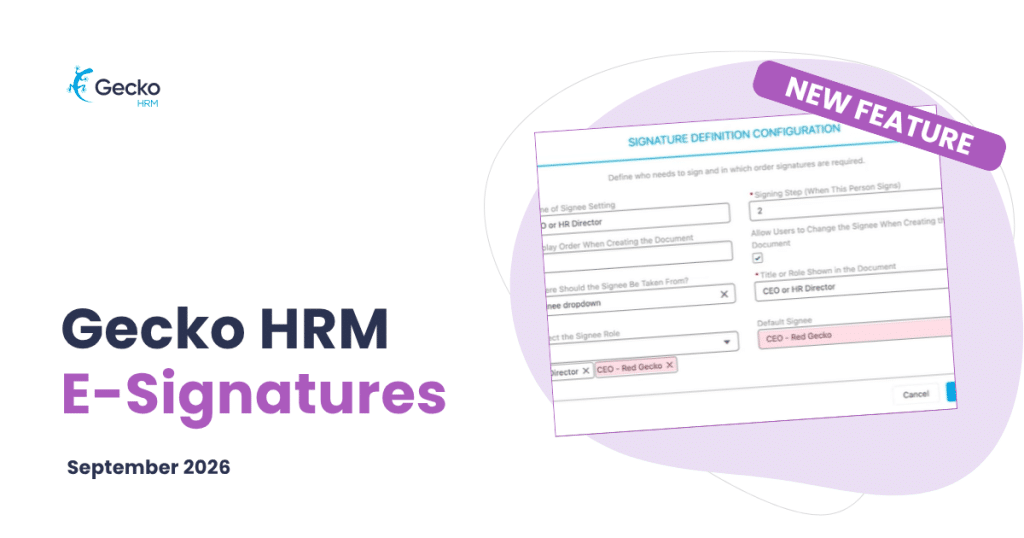
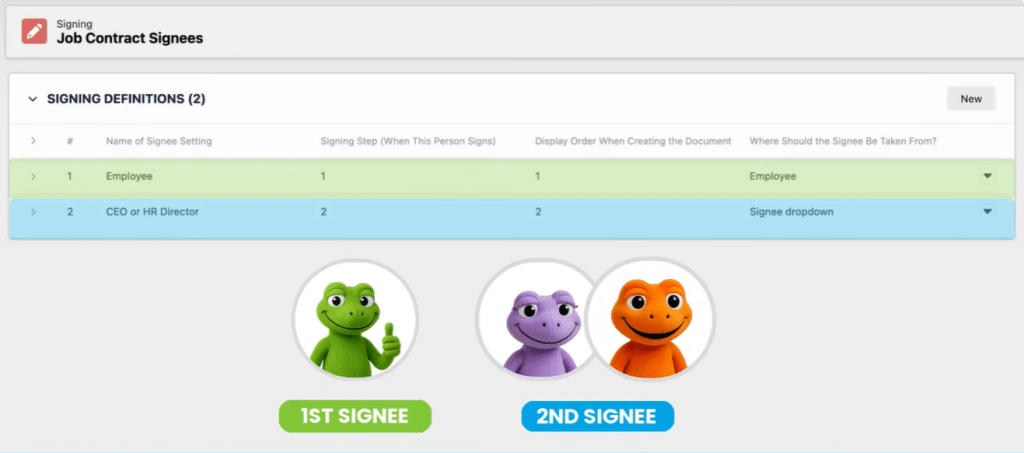
Yes. Gecko lets HR define the sequence in which signers sign a document. In the tutorial’s job contract example, the employee signs first, followed by either the CEO or HR director. A separate display order controls how the signers appear when an HR user creates the document.
This makes the expected sequence part of the configuration, ready to be used with the relevant document template.
For that contract, the setup is straightforward:
- The employee associated with the Job record is the first signer.
- The CEO or HR director is the second signer, with one selected as the default.
What Happens If the Default Signer Is Unavailable?
A signature configuration can offer a predefined selection of signers and set one as the default. Where changes are allowed, HR can select another configured signer when generating the document. In the tutorial, this means choosing the HR director if the CEO is unavailable to sign a job contract.
A familiar HR plot twist, with an alternative already accounted for.
The option to change a signer is configurable. HR can therefore decide where that flexibility belongs, instead of leaving every document open to ad hoc changes.
How Are Signer Changes Managed When a New CEO Joins?
When a new CEO joins, HR closes the existing predefined signer record with a To date and creates a new one with an appropriate From date. HR then updates the signature configuration to select the new CEO as the default. This preserves signing history while updating the default for future documents.
The dates also define when predefined signers are active. Signature configurations have their own validity dates, and only active configurations can be used in document templates.
Together, these settings help HR manage changes in responsibility without replacing the person on a historical signer record.

How Do E-Signatures Work with Document Templates?
Document Templates define how an HR document is prepared, while signature configurations define its signing requirements. Linking them brings document creation and signing setup together. For a job contract, the template supplies the document structure and system data, while the configuration identifies the employee and company representative who should sign.
It is the next step in the same document journey: prepare consistent content, identify the right people and define the order in which they sign.
Ready to bring more structure to your HR documents? Book a Gecko HRM demo to explore Document Templates and E-Signatures together.


You might also like
View all posts